
Registration is open. Follow your next steps, track your team’s readiness, finish activation, explore fundraising, and plan competition in the updated NCGA workspace.
Welcome back, coaches and team administrators. Registration for the 2026–2027 season is now open. The NCGA workspace helps you turn season setup into a clear plan: see what needs attention, take the next step, and keep your team moving toward competition.
You do not need to memorize every screen. Start with the Dash, then use Checklist, Roster, Events, Team Page, and Grow to reach the work. Here is a quick tour of the tools available to your team.
01 · Your next steps
The site points you to what comes next.
Your Dash now gathers outstanding setup tasks into a numbered Your next steps list. It can point you to seasonal coaching registration, athlete headshots, and unfinished team registration, with a button that takes you straight to each task.
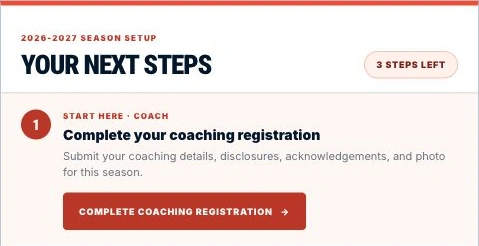
Returning coaches should complete this season’s registration and review their details, disclosures, acknowledgements, and photo. Returning members who have not yet signed in to the replacement website can use Reset your password from the login page.
02 · Team needs & roster
See who needs a hand.
The Dash’s team panel shows how many athletes are competition-ready and who Needs attention. Each item explains the outstanding issue and offers a follow-up action, so you can focus on helping athletes finish rather than hunting through individual accounts.
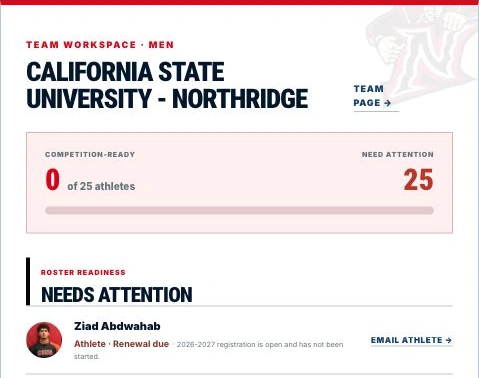
Open Roster for dues, headshot approval, seasonal status, and competition clearance. The Athlete photos link opens the photo workflow; Manage handles roster status. Mark athletes who are no longer participating Inactive / Alumni instead of deleting them.
Make photo day easy.
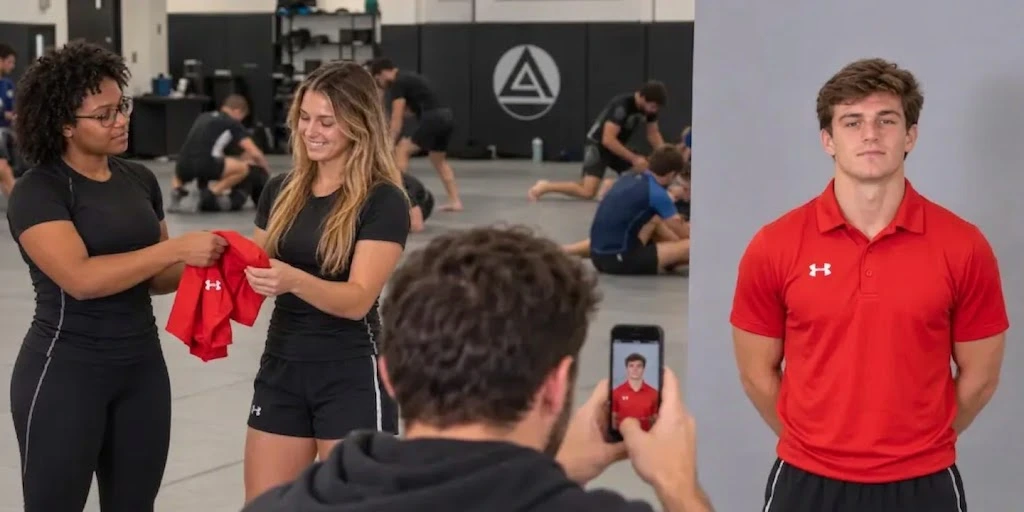
Set aside a day to take everyone’s headshot in the same team shirt. You only need two or three matching shirts in different sizes: athletes can take turns wearing the shirt that fits. Use a plain background, even lighting, and the same setup for every athlete. A phone camera works well.
In Roster → Athlete photos, drop multiple photos into the New photos tray. Drag each photo onto the correct athlete’s card, or tap a photo and then the athlete. Crop and review each headshot, double-check the names, and click Save changes. A coach or Team Admin’s submission approves the photo for clearance.
Use the Staff section to keep team administrators current. Team Page lets authorized staff maintain social links, photos, and team news. The Team Gear shortcut links to BattleGear247 for compliant gear; plan matching rash guards with the properly placed NCGA logo.
03 · Activation checklist
Finish the setup, one milestone at a time.
Coaches and team administrators share the Checklist. It keeps incomplete, pending, and completed requirements visible, including the team application, school signatures, NCGA review, coach registration and approval, and dues.
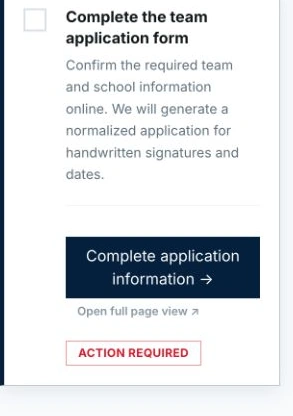
Start by completing the application information online. Print the generated application, collect the required handwritten school signatures and dates, then upload the signed copy. The checklist shows when NCGA review is pending or when a correction is needed.
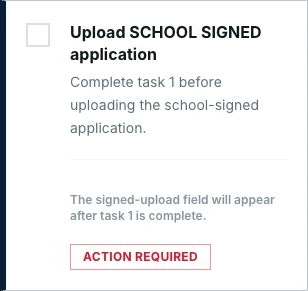
Follow the checklist’s order. Team dues should be paid after the school-signed application is submitted and approved. The team activates automatically once all requirements are complete; athlete competition clearance still depends on each athlete’s readiness.
04 · Fundraising opportunity
Turn a short campaign into team momentum.
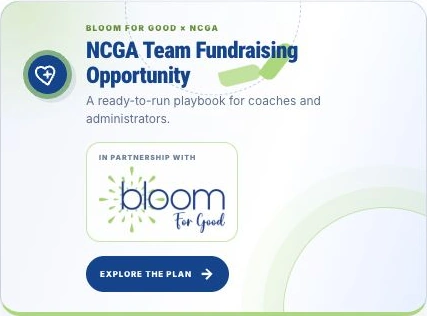
The NCGA partnership with Bloom for Good gives coaches and team administrators a ready-to-run fundraising playbook. Build a list, launch together, keep score, and follow up. A shared plan helps the team work toward a concrete season goal.
05 · Grow your network
Find the next program down the road.
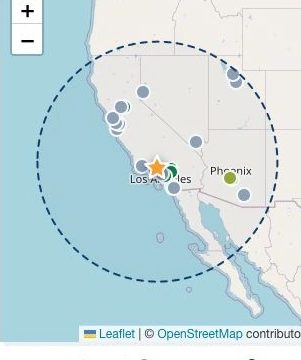
Grow → Outreach Map brings active and prospective collegiate programs into a shared view. Find nearby schools, review available contacts, and add useful outreach notes so other leaders can build on your work. More nearby programs can mean more opponents, shorter trips, and stronger conferences.
06 · Events & duals
Create competition with a clear handoff.
Events now gives you two clear starting points: Create a tournament and Create a dual. Keep events connected to your teams and review their status. Coaches are responsible for arranging officials.
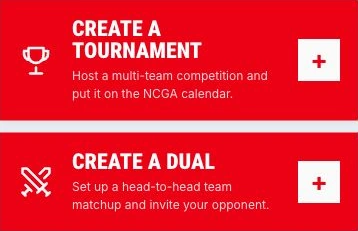
- Build the event. Add the date, venue, and details. For a dual, choose the men’s or women’s division, your team, and an opponent in that division. Tournaments can include both divisions with separate competition.
- Save or submit. Save a draft while planning, or submit it for administrator approval when ready. Public publishing requires approval.
- Review and send invitations. Saving does not send them. Use the separate invitation workflow; invited team staff confirm or decline, and invitation email is optional.
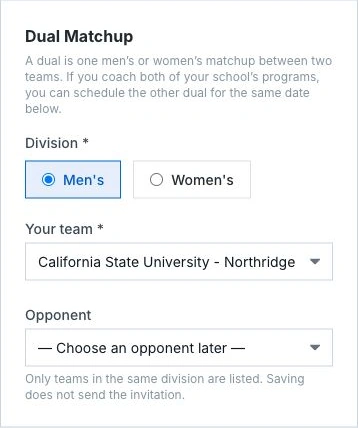
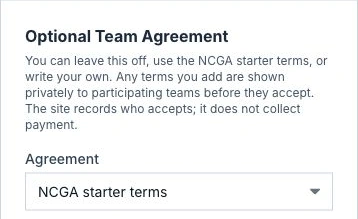
You can use the optional built-in team agreement with NCGA starter terms or your own wording, and the site records each participating team’s acceptance.
07 · Officials & rules
Plan the official before the mat is busy.
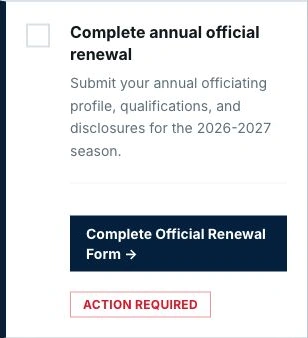
Every NCGA event needs a registered official. Coaches are responsible for arranging officials directly. Start early and encourage qualified local coaches or gym contacts to explore official registration. Officials have their own activation checklist for renewal, a background report, the required course, a shirt, and assignment preferences.
Review the current Rulebook before competition, and coordinate with the opposing coach and referee about any matchup safety concerns.